Automate Sonarr with Seedr (Blackhole Setup)
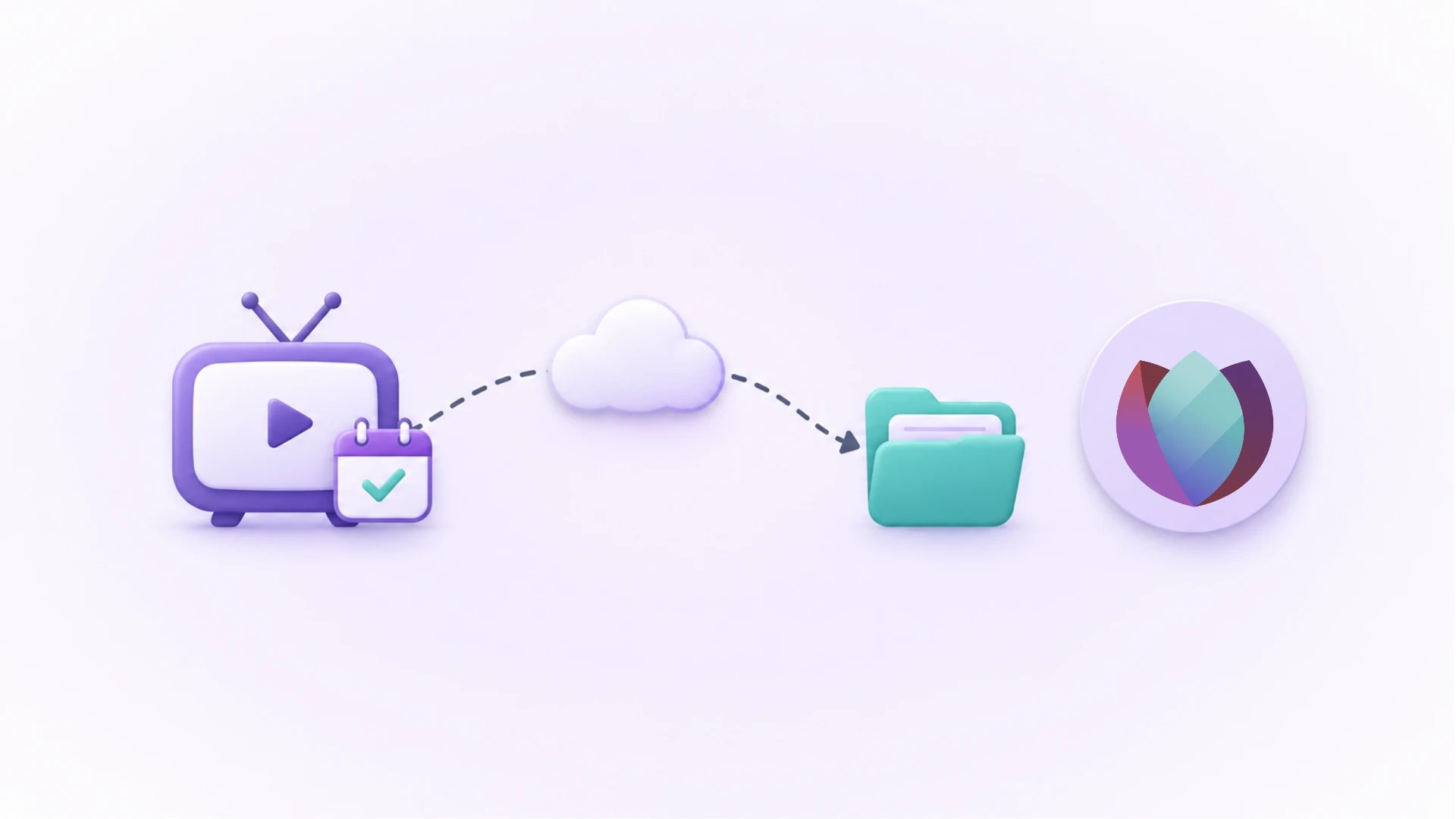
Keeping a download app running on your PC just so Sonarr has somewhere to send episodes gets old.
There is a simpler split: Sonarr decides what to get, Seedr fetches it in the cloud, and the small Seedr app for Sonarr brings the finished files back to a folder Sonarr watches. Sonarr then renames them and moves them into your library, the same way it would with any other download client.
The whole connection is two folders. There are no API keys or passwords to copy between the apps: Sonarr writes into one folder and reads from the other. The app runs on Windows, Linux, Docker and Unraid.
What this gets you
Sonarr keeps tracking your shows and picks new episodes as usual.
The fetching happens in your Seedr cloud, not in a download app on your machine.
Finished files arrive in a local folder, and Sonarr imports, renames and files them without a click from you.
Your Plex, Jellyfin or Kodi library stays current.
What you need
A Seedr account. Any account works, including a free one. Your plan's storage decides how much can sit in your Seedr account at once.
Sonarr, already running (and Radarr, if you want films too).
A machine for the Seedr app: a Windows 10 or 11 PC, a 64-bit Linux PC, or Docker, including Unraid. Use the machine Sonarr runs on, or one that sees the same folders.
Indexers for Sonarr to search. Many people manage them in one place with Prowlarr.
You do not need a separate download app or port forwarding.
Step 1: Install the Seedr app
Download the newest version for your system. These links always point to the latest release:
Windows 10 and 11: SonarrSeedr-Setup.exe
Linux (most 64-bit PCs): SonarrSeedr-x86_64.AppImage
Docker and Unraid: sonarr-seedr-docker.tar.gz
Already using version 1.1.61 or older? Install once from these links. Your settings are kept, and from then on the app finds new versions by itself.
Windows
Run SonarrSeedr-Setup.exe. If Windows says "Windows protected your PC", click More info, then Run anyway.
Finish the installer. The app starts, adds a Seedr icon next to the clock and opens http://localhost:8242 in your browser.
To open it later, click the Seedr icon next to the clock (right-click it for Dashboard or Quit SonarrSeedr), or go to http://localhost:8242.
Linux
Make the file runnable and start it. It opens http://localhost:8242.
chmod +x SonarrSeedr-x86_64.AppImage
./SonarrSeedr-x86_64.AppImage
To start it when you log in, save this as ~/.config/systemd/user/sonarr-seedr.service, with the full path to your AppImage:
[Unit]
Description=Seedr for Sonarr
After=network-online.target

[Service]
ExecStart=/home/YOU/Apps/SonarrSeedr-x86_64.AppImage --no-browser
Restart=on-failure

[Install]
WantedBy=default.target
Then run systemctl --user enable --now sonarr-seedr.
Docker
The image comes as a file. Download it and load it into Docker once:
wget -O sonarr-seedr-docker.tar.gz https://extend.seedr.cc/releases/download/sonarr-latest/sonarr-seedr-docker.tar.gz
docker load -i sonarr-seedr-docker.tar.gz
Docker prints the image name, for example localhost/sonarr-seedr:1.1.62. Start it next to Sonarr, using that name:
docker run -d --name sonarr-seedr --restart unless-stopped \
  -p 8242:8242 \
  -e PUID=1000 -e PGID=1000 \
  -v /path/to/sonarr-seedr/config:/config \
  -v /path/to/downloads:/downloads \
  localhost/sonarr-seedr:1.1.62
Two things matter here:
/downloads must be the same folder on your machine, at the same path inside the container, as in your Sonarr container. If Sonarr has -v /srv/media/downloads:/downloads, use exactly that.
Set PUID and PGID to the same numbers as your Sonarr container, so Sonarr can move and delete what the app brings in.
On Fedora, RHEL or Podman with SELinux, add :Z to each volume, for example -v ./config:/config:Z. Docker Compose works too: add a service with the same image, port, volumes and variables next to Sonarr.
Then open http://<your-server-ip>:8242.
Unraid
Open the Unraid terminal (the >_ icon at the top right) and load the image:
cd /mnt/user/appdata
wget -O sonarr-seedr-docker.tar.gz https://extend.seedr.cc/releases/download/sonarr-latest/sonarr-seedr-docker.tar.gz
docker load -i sonarr-seedr-docker.tar.gz
Then go to the Docker tab, click Add Container and fill in:
Name: sonarr-seedr
Repository: localhost/sonarr-seedr:1.1.62 (the name docker load printed)
Port: container port 8242 → host port 8242
Path: container path /config → /mnt/user/appdata/sonarr-seedr
Path: container path /downloads → the same share your Sonarr container uses for /downloads, for example /mnt/user/downloads
Variables: PUID = 99, PGID = 100
Click Apply and open the WebUI at http://<unraid-ip>:8242. Unraid's own update check shows "not available" for this container. That is expected, because the image was loaded from a file; see "Keeping the app up to date" below.
Step 2: Connect your Seedr account and choose two folders
The app opens on a short setup:
Seedr. Click Connect Seedr. Open the address shown or scan the QR code, enter the code and approve it in your Seedr account. The step shows Connected.
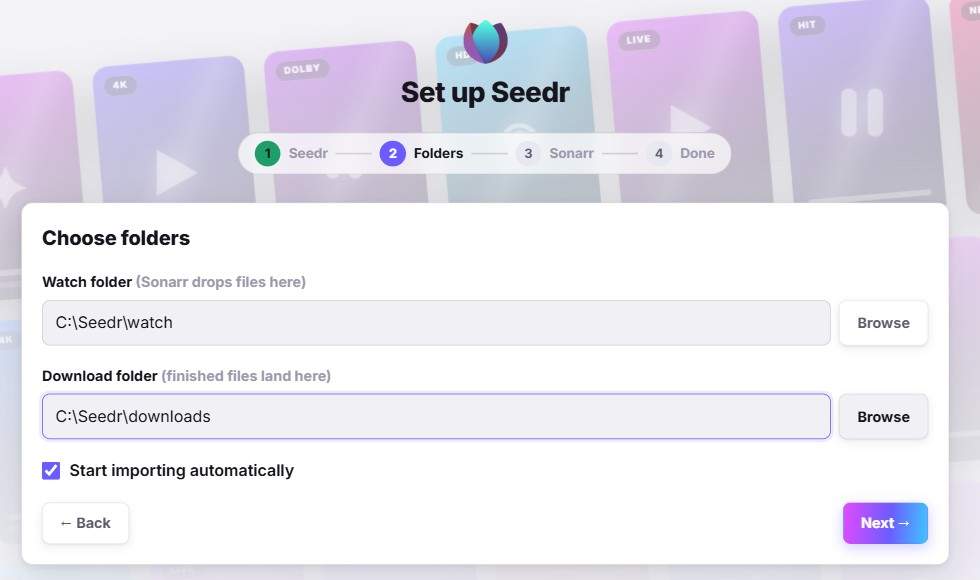
Folders. Choose two different folders:
Watch folder: Sonarr drops a small link file here for each episode it grabs. The app picks it up and sends it to Seedr.
Download folder: the app brings the finished files here. Sonarr imports from here.
On Docker and Unraid both are already set: /downloads/watch and /downloads/complete. Leave Start importing automatically on. Do not use your Sonarr library folder for either of them.
Sonarr. The app shows the two folder paths to enter in Sonarr, each with a Copy button. Keep this page open for the next step. The Sonarr address here is optional; it only drives the status light.
Done. Click Open Dashboard.
On Docker, setup stays open for 30 minutes after the container starts. Set it up from the browser you will use: only the browser that connects Seedr stays signed in afterwards.
Step 3: Add the Blackhole client in Sonarr
In Sonarr, add one download client:
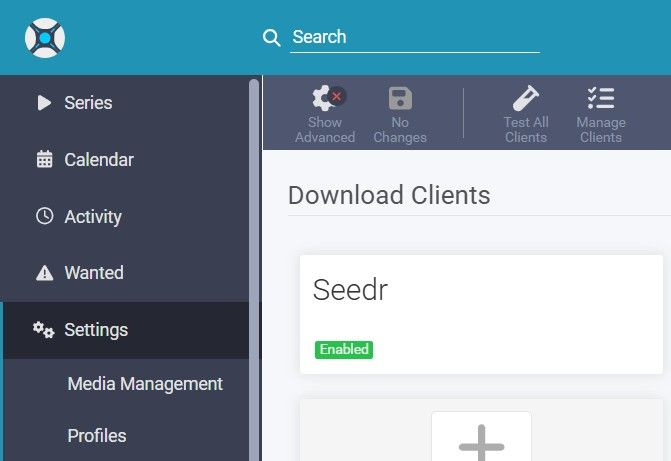
Open Settings → Download Clients, click + and choose the Blackhole client. It is Sonarr's name for a client that works through folders.
Give it a name, for example Seedr.
In the first folder box, where Sonarr saves what it grabs, paste the app's Watch folder (use the Copy button in the app). On Docker: /downloads/watch.
In the Watch Folder box, paste the app's Download folder. On Docker: /downloads/complete. Note the naming: Sonarr's "Watch Folder" is where Sonarr watches for finished files, which is the app's download folder.
Turn on Save Magnet Files and set the extension to .magnet.
Click Test, then Save.
Read Only works either way. On, Sonarr copies the finished file into your library and leaves the original in the download folder, which takes extra space unless both are on the same drive. Off, Sonarr moves it.
Sonarr must see both folders at exactly these paths. If Sonarr runs in Docker and the app on Windows, or the other way round, put both in Docker or both outside it.
Step 4: Connect your indexers
Sonarr needs at least one indexer to find episodes; Seedr does not provide them. If you already use Prowlarr, connect it to Sonarr in Prowlarr's Settings → Apps, and it keeps Sonarr's indexer list in sync. See the Prowlarr documentation for details.
Only add sources that offer content you are allowed to download.
Step 5: Test it with one episode
Add an openly licensed series in Sonarr (Series → Add New), choose your quality profile and library folder, and search for one episode. Then watch it go through:
Sonarr grabs a release and drops its link file in the watch folder.
The app sends it to Seedr. It shows up on the app's Dashboard, and Tasks follows each download in two stages: Seedr cloud (Seedr fetching it), then Your PC (the files coming home).
When the task is marked SAVED with Your PC at 100%, the files are in the download folder.
Sonarr imports the episode, renames it and moves it to the series folder in your library, on its normal schedule.
If all four happen, you are done. New episodes now follow the same path while you do something else.
The app also has a Library where you can see what is in your Seedr account and play it in the browser.
Add Radarr for films (optional)
Radarr works the same way, with its own two folders, so each app only sees its own downloads:
In the app, open Settings → Folders and set the Radarr watch folder and Radarr download folder. On Docker they are preset: /downloads/radarr-watch and /downloads/radarr-complete.
The app shows the Radarr steps under Connections · Radarr, with Copy buttons.
In Radarr, add the Blackhole client the same way as in Step 3, with the Radarr watch folder and the Radarr download folder, and Save Magnet Files on with .magnet. Then Test and Save.
Never point Radarr at Sonarr's folders, or Sonarr at Radarr's: each would try to import the other's files. More in Automate Radarr with Seedr.
Opening the app from other devices
Docker and Unraid: open http://<server-ip>:8242 from any device on your network. Each browser signs in with Seedr, with the same code or QR approval, and only the Seedr account the app uses is let in. A browser that is not used for 7 days asks again. Settings → Sign out all browsers ends every session.
Windows and Linux: the app only answers on the same PC, at http://localhost:8242. To open it from other devices, start it with --host 0.0.0.0, and only on a network you trust.
Using a reverse proxy with your own domain on Docker? Add the name to the container with -e SEEDR_ALLOWED_HOSTS=seedr.example.com.
Keeping the app up to date
Open Settings in the app. Next to the version number, Check looks for a new version.
Windows: click Install. The app downloads the update, checks it and restarts on the new version.
Linux: download the new AppImage over the old one (or change the path in your service file), run chmod +x on it, quit the app and start it again.
Docker: load the new image, remove the old container with docker rm -f sonarr-seedr, and run the same docker run command with the new version number. Your setup stays in /config.
Unraid: load the new image in the terminal, then in the Docker tab edit the container, change Repository to the new version and click Apply.
If something goes wrong
Nothing happens after Sonarr grabs an episode. Look in the app's watch folder for a new link file (.magnet):
No file there: Sonarr saved it somewhere else. In Sonarr's download client, the first folder box must be the app's watch folder (on Docker, both containers must use the same /downloads), and Save Magnet Files must be on with .magnet. Sonarr's Activity → History shows whether the grab happened.
The file stays there: the app isn't running or isn't signed in to Seedr. Open it and check the Dashboard.
The file is gone, but nothing shows up: Seedr didn't accept it, for example because your Seedr storage is full. The file is in the error folder next to the app's settings (on Windows, %LOCALAPPDATA%\Seedr\error), and the reason is in logs/folder_watcher.log.
Sonarr says it cannot import, or that the path does not exist. Sonarr and the app see the folders at different paths. In Docker, /downloads must be the same folder on your machine in both containers.
Sonarr cannot move or delete a downloaded file. On Docker, set PUID and PGID to the same values as your Sonarr container.
Files arrive in the download folder but Sonarr does not import them. Check that Completed Download Handling is on in Sonarr's Settings → Download Clients, and look at Activity → Queue for the reason. The download folder must not be one of Sonarr's library (root) folders.
Sonarr's Test button reports a permission error on Windows. Sonarr may be running as a Windows service, under an account that cannot reach folders inside your user profile. Move both folders outside your profile (for example C:\Seedr\…) or run Sonarr as your own user.
The Docker page says setup is closed. Restart the container and finish setup within 30 minutes. Or use the setup code: open the page once, then run docker logs sonarr-seedr 2>&1 | grep "setup code" and type the code it shows.
During setup, the page will not open by a domain name. Open it by the server's IP address, or add the name with -e SEEDR_ALLOWED_HOSTS=your.domain.
Another browser has to sign in again after setup. That is expected: only the browser that connected Seedr stays signed in. Sign in on the other one with Seedr.
Port 8242 is already in use. On Windows or Linux, start the app with --port 9000. On Docker, change the left number, for example -p 9000:8242.
Where are the logs? Windows: %LOCALAPPDATA%\Seedr\logs. Linux: ~/.local/share/sonarr-seedr/logs. Docker: docker logs sonarr-seedr, or the logs folder in /config.
To remove the app: on Windows, Settings → Apps → Installed apps → Seedr → Uninstall; on Linux, delete the AppImage; on Docker, docker rm -f sonarr-seedr. Then remove the Seedr client from Sonarr and Radarr.
What works well, and the limits
Works well
Sonarr's normal routine stays the same: it tracks shows, picks releases and handles the import. The Seedr app only replaces the download app in the middle.
One app covers Sonarr and Radarr, on Windows, Linux, Docker or Unraid.
If you would rather watch straight from the cloud than keep copies on your machine, mount Seedr as a drive and point your media player at it. WebDAV is available on the Master plan and above.
Limits
Seedr does not search for episodes. Sonarr and your indexers still do that.
Sonarr and the app must see the same folders at the same paths, so keep them both in Docker or both outside it.
Everything Sonarr grabs passes through your Seedr storage first, so your plan's space sets how much can be in progress at once.
Watch what Sonarr brings in
Once episodes land in your library, play them the way you already do. If your media server should read from the cloud instead of a local disk, see Plex without a NAS, Seedr with Jellyfin or Seedr in Kodi.
✦ More space for automatic downloads ★ Risk-free · 7-day money-back · Cancel anytime
Was this article helpful?
Related Articles

Run Plex Without a NAS: Use Seedr as Your Library
Run Plex without a NAS by keeping media in cloud storage and mounting it on the computer running Plex Media Server. Seedr supplies the files; Plex still.

How to stream MKV and AVI videos in your browser
Stream MKV and AVI in a browser by using a compatible playback service rather than assuming the file extension is supported locally. In Seedr, import the.
Download large files on slow or restricted connections
On a slow connection, a cloud download manager can fetch a source file while your device is offline. It cannot make your Wi-Fi faster or override a.