Is Seedr right for you? What it does and its limits
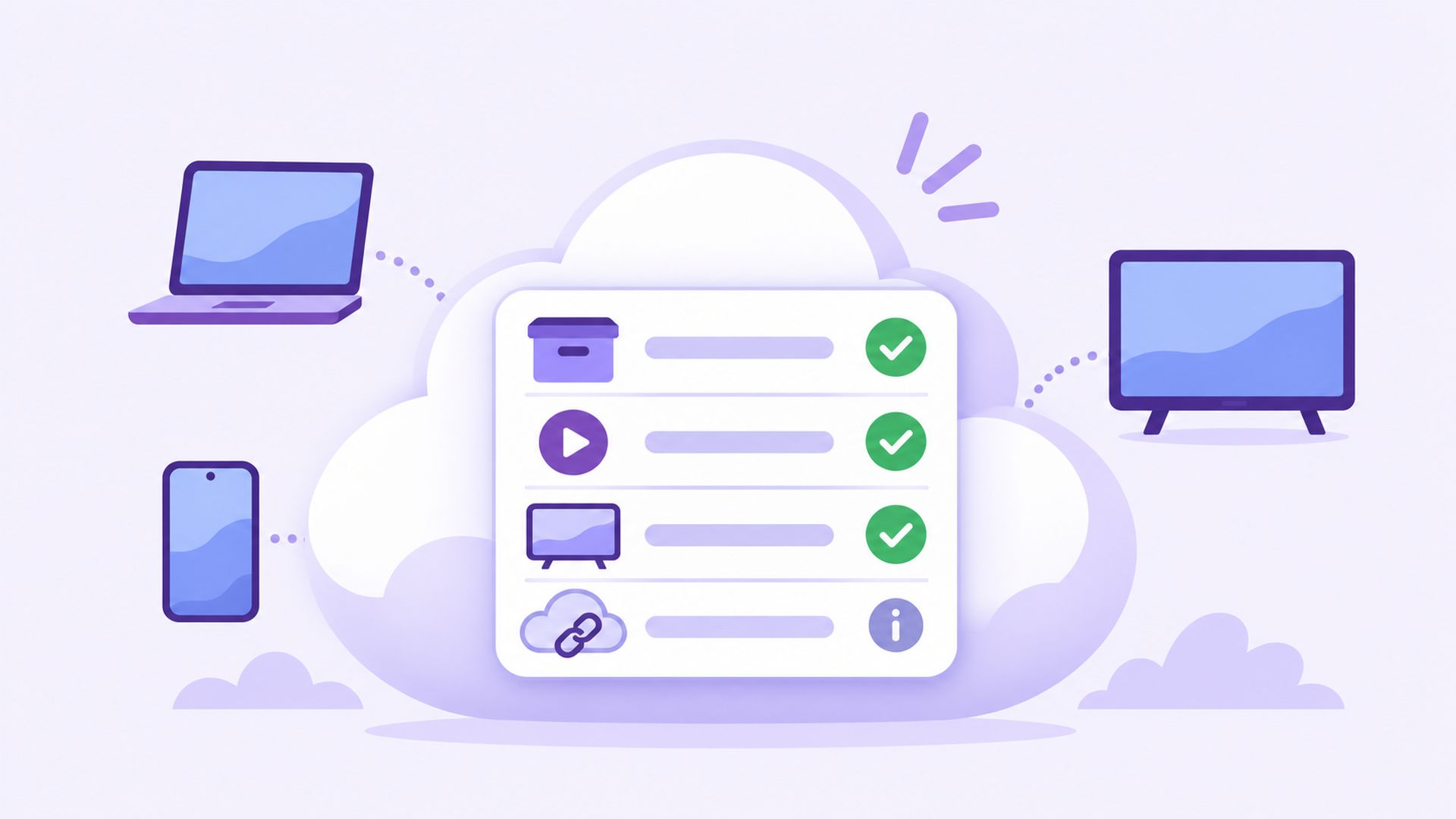
Juggling downloads, full phones and cables to the TV gets old fast. Seedr takes that off your hands: paste a link, and Seedr fetches the file to its own servers, keeps it in your cloud library and plays it in the browser, on your phone or on your TV. This page shows what you get, which plan covers what, and the few things worth knowing before you start.
What Seedr does for you
Fetches files while you are away. Add a direct link to a file or a magnet link, and the transfer runs on Seedr's servers, so it keeps going when you close the browser or switch your computer off. It does not use your home connection.
Lets you watch without saving a copy first. Click a video in your library and it plays in the browser, with subtitles and multiple audio tracks.
Keeps one library on every device. Open the same files on a laptop, phone, tablet or TV browser. You can still download any file to your device when you want a local copy.
Puts it on the big screen. Cast from the Seedr player with Chromecast or AirPlay, or use the Google TV app, the Roku app (in the US), Kodi, Infuse, Plex or Jellyfin. See How do I play Seedr on my TV?
Works with your file apps. Connect over FTP, FTPS and SFTP, or mount your library as a drive with WebDAV.
Moves files to your other clouds. Copy, move or drag files between Seedr and a connected cloud such as Google Drive. See how to copy files between Google Drive and Seedr.
Which plan covers what
Free | Basic | Pro | Master | |
|---|---|---|---|---|
Storage | 2 GB | 50 GB | 500 GB | 2 TB |
Streaming quality | up to 480p | HD 720p | Full HD 1080p | 4K 2160p |
Connected clouds | — | 2 | 5 | 10 |
FTP, FTPS and SFTP | — | Yes | Yes | Yes |
WebDAV drive mount | — | — | — | Yes |
For bigger libraries, the Gold plans go from 4 TB to 20 TB and include everything in Master. There is also a Lite plan. See the pricing page for every plan and the current prices. Seedr V2 is open to every account, and plans do not renew on their own: you choose when to extend.
✦ HD streaming and more space ★ بلا مخاطرة · استرداد الأموال خلال 7 أيام · ألغِ في أي وقت
Good to know before you start
Storage is the only size limit
There is no separate cap on how big a file can be. A transfer fits as long as there is free space in your library, and you can see that space at the top left of the file manager. See Do you limit link transfer size?
Files are ready once the transfer finishes
You can open or play a file as soon as its transfer into Seedr is complete. Until then, you can close the tab and come back later.
Rare links are marked for you
You can tell in advance when a link may take a while. When a file is rare, Seedr shows its link in yellow or red with a (!) icon: it may arrive slowly or not at all, because there are few places to get it from. Hover over the icon for details. See What does it mean when a link is yellow or red?
The original file sets the picture quality
Your plan sets the highest streaming quality, and the file itself sets the ceiling: a 720p file stays 720p on a 4K plan. Whether 4K reaches your screen also depends on your TV or player.
Sharing back after a transfer
On standard networks, Seedr shares data back until a 1:1 ratio or for up to 12 hours. For other networks, the time and ratio depend on your plan. See How much does Seedr seed?
What Seedr is not
Seedr is a place to fetch, keep and play files. It is not an automatic backup of your phone or computer, and it does not sync a folder on your device in both directions. If that is what you need, use a backup or sync tool alongside it.
Common questions
Does Seedr work with ordinary links? Yes. We have seen people on forums ask for "something like Seedr, but for regular links", so it is worth saying plainly: Seedr fetches files from direct download links as well as magnet links. Paste the link, and the file lands in your library the same way.
What do these terms mean? The Seedr glossary explains remote downloads, magnet links, streaming without downloading, WebDAV, FTP, connected storage, TV playback and seeding.
Which plan do I need? Start from how you watch. Phone and laptop in HD: Basic. A large library in Full HD with more connected clouds: Pro. 4K on the TV or a WebDAV drive for Plex, Kodi or Infuse: Master.
Where do I get help? Browse the Help Center.
Ready to try it? Compare plans.
هل كانت هذه المقالة مفيدة؟
مقالات ذات صلة
How to choose a music player for Android when the music is your own
Decide by where your music lives and how much room your phone has, then check the features that matter.
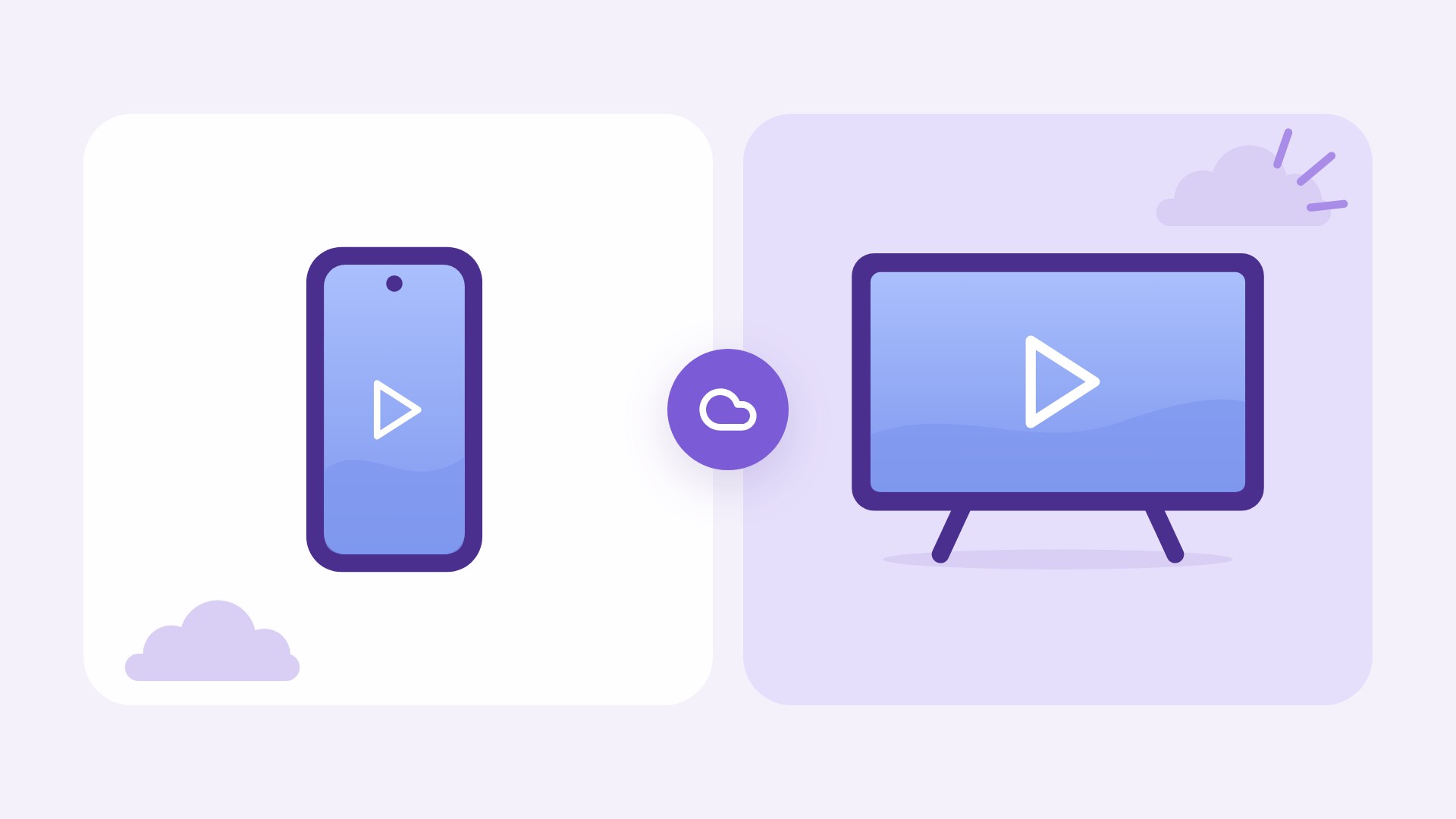
The new Seedr Android app: your library on your phone and your TV
The upgraded Seedr Android app brings Seedr V2 to your phone and TV: add links, play video and audio in the built-in media player, and sign in on your TV with a QR code.
Seedr glossary: cloud downloading terms explained
Plain definitions of cloud downloading terms, from remote downloads and magnet links to WebDAV, FTP, TV playback and seeding limits, with links to Seedr Help.